User guide
This page explains Flurfunk for the people who use it every day.
- Getting around
- Threads and replies
- Formatting
- Mentions
- Slash commands and cards
- Files
- Tasks
- The board
- Conversations about posts
- Follow, mute, remind me
- Notifications
- Your settings
- Keyboard shortcuts
- For guests
Getting around
Open Flurfunk in the admin menu. The number next to it counts your unread messages.
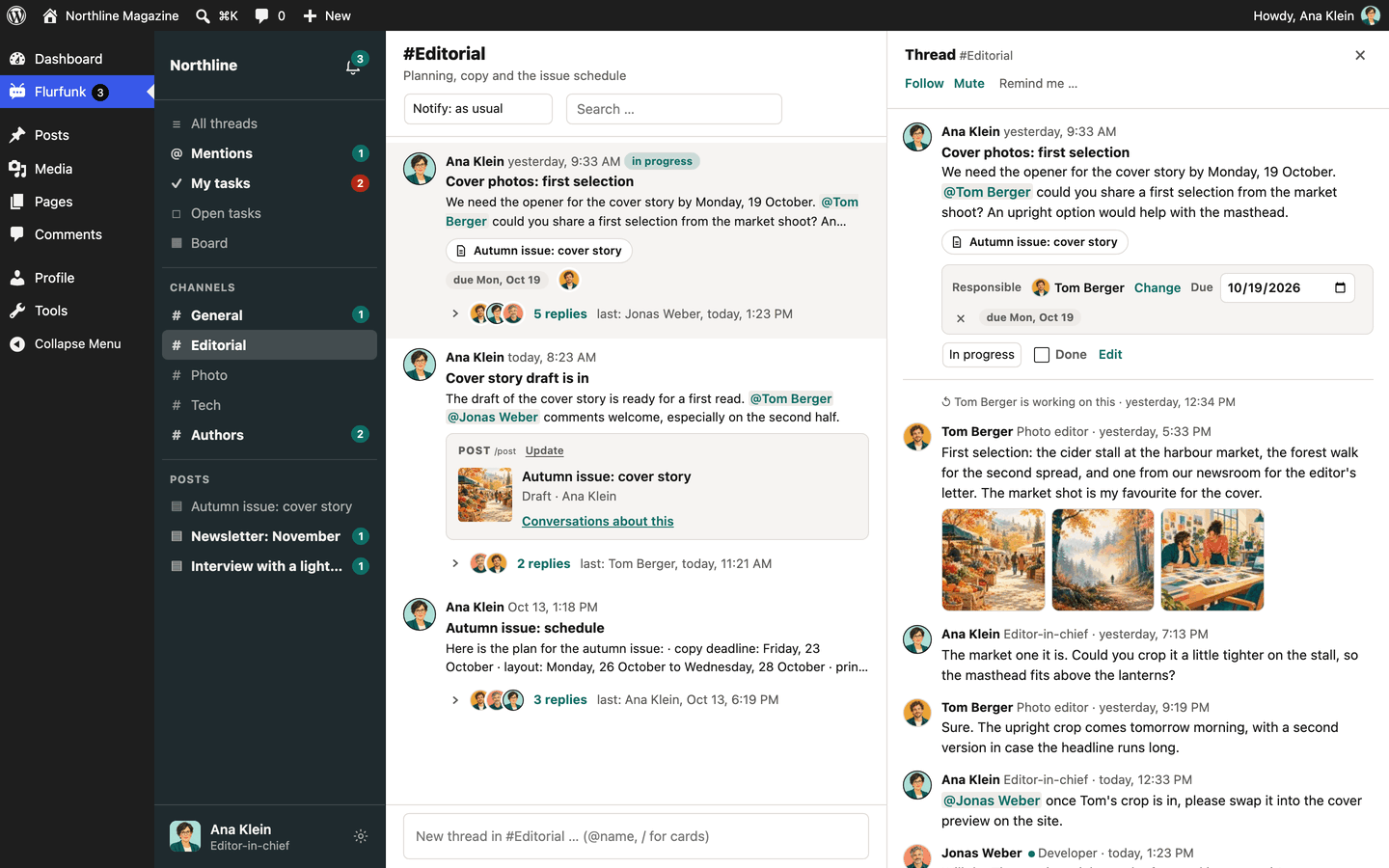
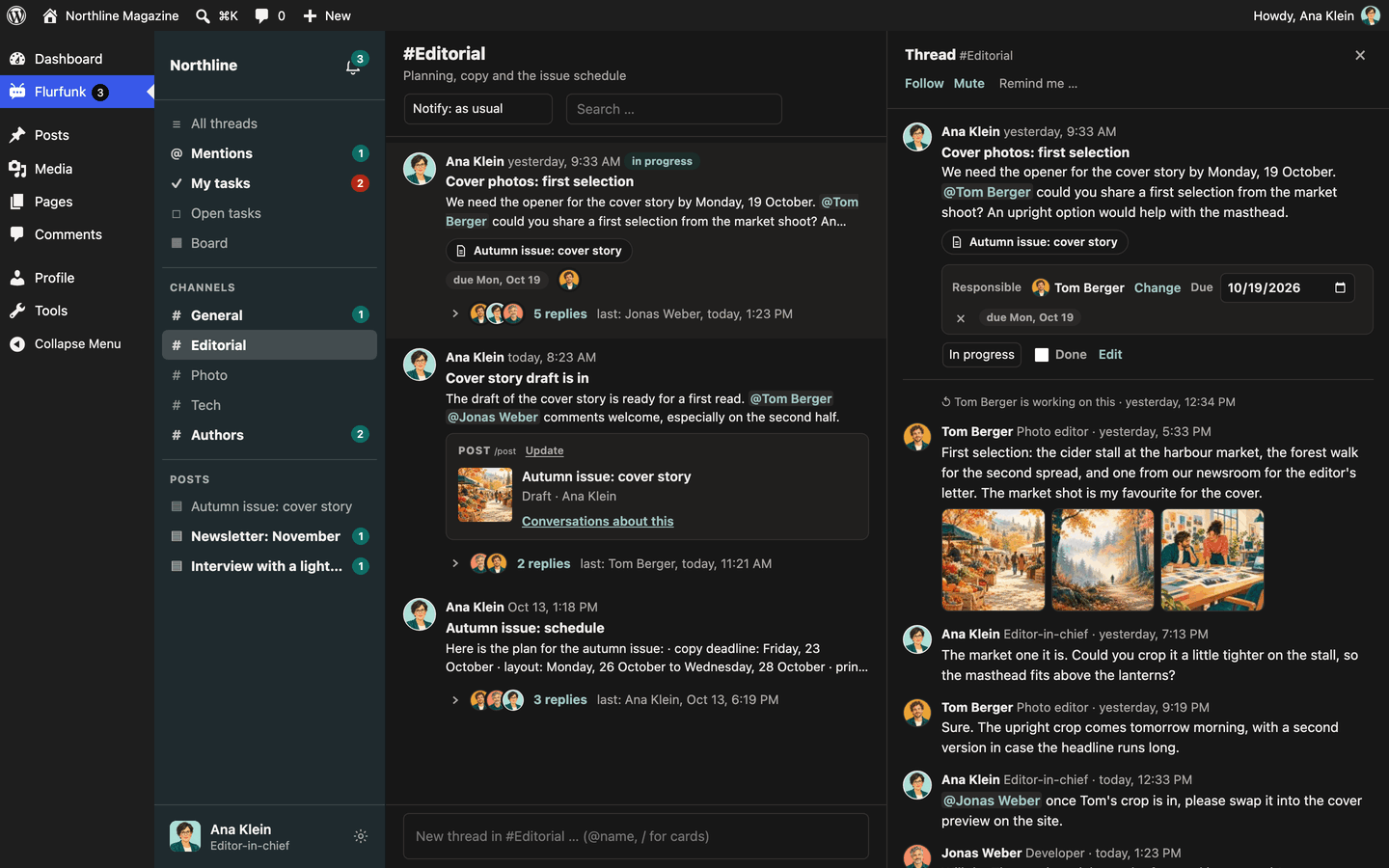
The overview has three columns:
- Sidebar with the views, the channels, posts with recent conversations, the bell and your name at the bottom.
- Thread list of the current view, newest activity first, with a box for starting a new thread at the bottom.
- Thread pane with the open thread and its replies.
| View | Shows |
|---|---|
| All threads | Everything you can see, latest activity first |
| Mentions | Threads where someone mentioned you |
| My tasks | Open tasks you are responsible for, by due date |
| Open tasks | All tasks not ticked off yet |
| Board | Tasks in columns by state: open, in progress, question, done |
#channel |
The threads of one channel |
| A post | All conversations about this post, from every channel |
| Bell | Your notifications |
Threads with unread messages are highlighted and show “… new”. Mark all as read in the header clears the unread state of the current channel; in the other views it clears everything.
The search box in the header searches thread titles, thread texts and replies.
Drag the edge of the sidebar or of the thread pane to change its width; double-click the edge to reset it. Flurfunk remembers the widths in your browser.
Flurfunk updates itself every 30 seconds while it is visible, and right away when you come back to the tab.
Full screen
Open full screen in your settings (click your name) opens Flurfunk on a page of its own, at
/flurfunk/ on your site: no admin bar, no admin menu, just the app. Back to WordPress returns.
On a phone the same address can be added to the home screen and then works like an app (see
Push on phones and tablets).
Threads and replies
Start a thread
Use the box at the bottom of the thread list:
- Write the text. In a channel view the thread goes to that channel; elsewhere pick the channel from the list.
- Optionally pick what the thread is about under Attached to (a post, or another type a plugin added). Search by typing.
- Optionally tick Task, set a due date and click Assign to choose responsible people.
- Click Start thread or press Ctrl+Enter (Cmd+Enter on a Mac).
Reply
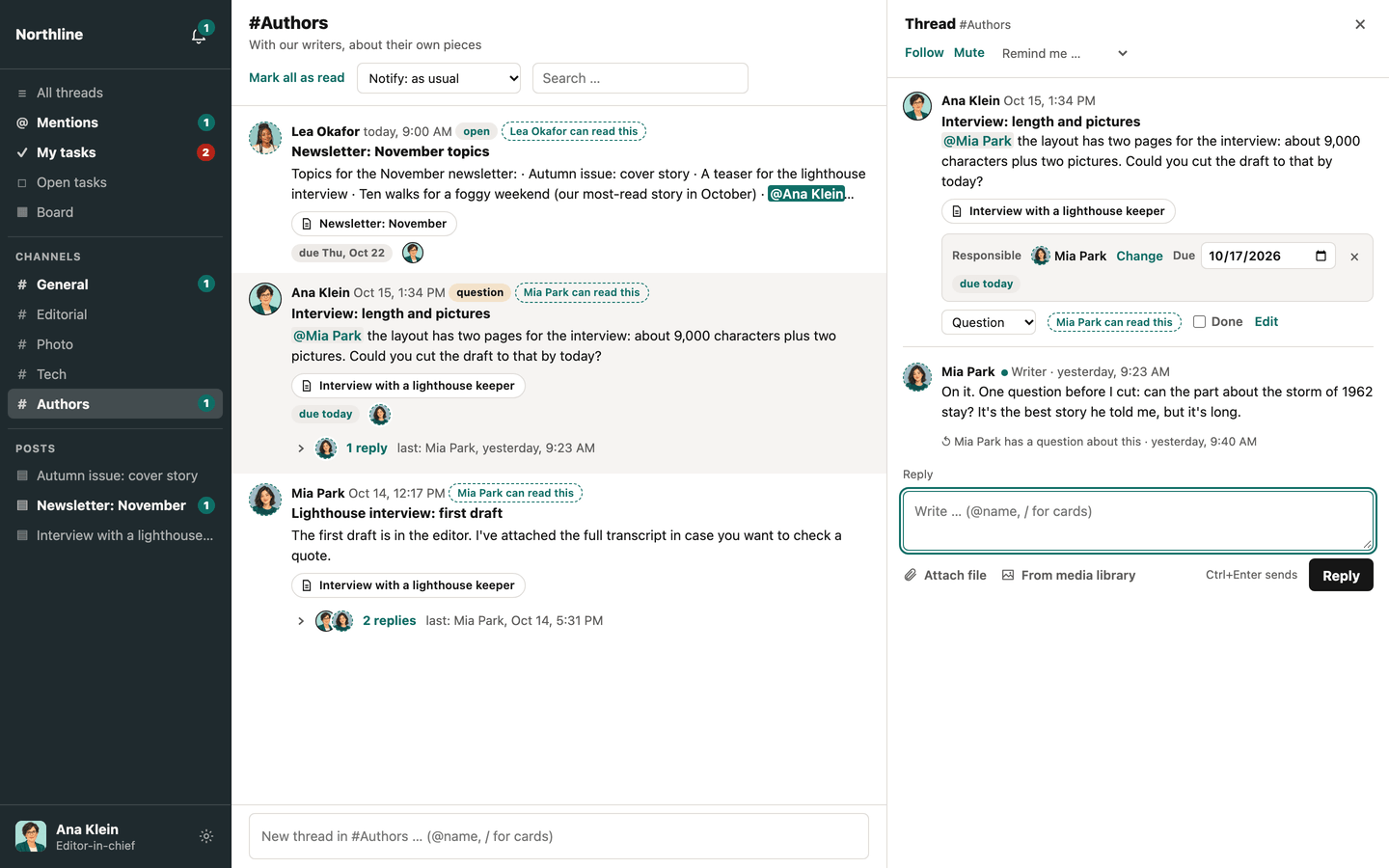
Click a thread to open it, write in the Reply box and press Ctrl+Enter or click Reply.
What you type is kept as a draft in this browser until you send it, even if you reload the page or open another thread.
Edit and delete
Your own messages have Edit and Delete next to them. Administrators can edit and delete all messages. An edited message is marked “(edited)”. A deleted message leaves a short note (“… deleted a message”) so the replies after it keep their context. The text of the thread itself and its title can be changed with Edit below it.
Formatting
Flurfunk uses a small, Slack-like formatting. There is no toolbar; you type the marks.
| You type | You get |
|---|---|
*bold* |
bold |
_italic_ |
italic |
~strike~ |
|
`code` |
code |
```code block``` |
a block of code (can span several lines) |
- item, * item or • item at the start of a line |
a bulleted list |
1. item or 1) item |
a numbered list |
> text |
a quote |
https://… |
a link (opens in a new tab) |
Notes:
- Marks only work at word boundaries.
snake_case_nameand3*4*5stay as they are. - Use single marks.
**text**is not bold. - Nothing inside code or links is formatted.
- Line breaks are kept.
- HTML is never interpreted;
<b>shows as text.
Mentions
Type @ and the first letters of a name, then pick the person from the list. When you send,
@Full Name (or a first name that only one person has) becomes a mention.
The mentioned person is notified and the thread shows up in their Mentions view. Only people who can see the thread can be mentioned. If you mention someone who has no access to the channel or post, nothing reaches them.
Your own name is highlighted when someone mentions you.
Slash commands and cards
Type / at the start of the text or after a space. A menu lists the commands you can use:
| Command | Inserts |
|---|---|
/post |
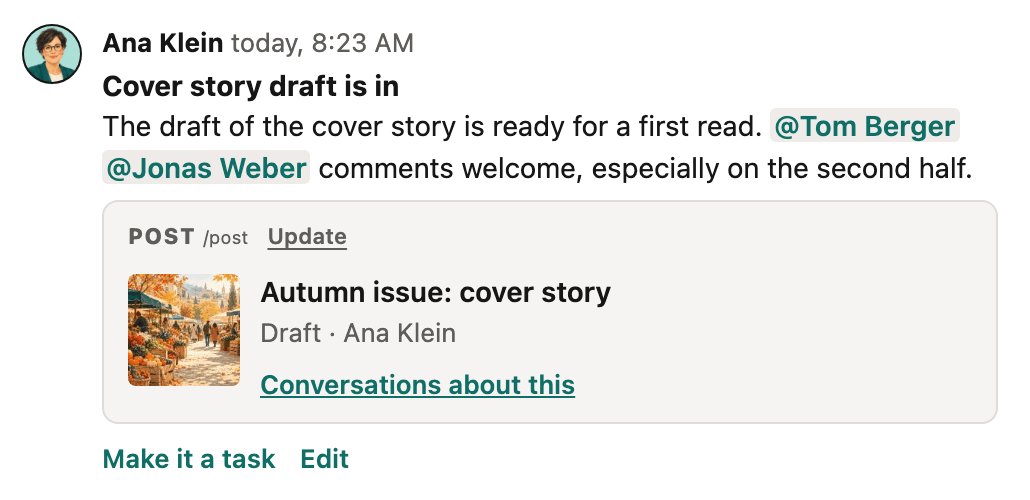
A post as a card: title, status, author, thumbnail, link to the editor |
/newsletter |
A MailerPress campaign (only if MailerPress is active; team only) |
| others | Whatever plugins on your site add |
Type the command, a space and a search term, for example /post teaser. Pick a result with the
mouse or the arrow keys. The card appears above the send button; click × to remove it again.
A message can carry up to 10 cards.
A card is a snapshot: it shows the data from the moment it was inserted, so it stays readable even when the post or campaign changes or is deleted. Click Update on a card to fetch the current data.
Files
There are two ways to add files to a reply:
- Attach file uploads files from your computer. You can pick several at once. Wait until the upload has finished, then send.
- From media library opens WordPress’s media dialog. Pick one or more files that are already in the library. Nothing is copied: the message refers to the file where it is.
A message can carry up to 50 files. You can attach your own files and files you may edit.
How files show:
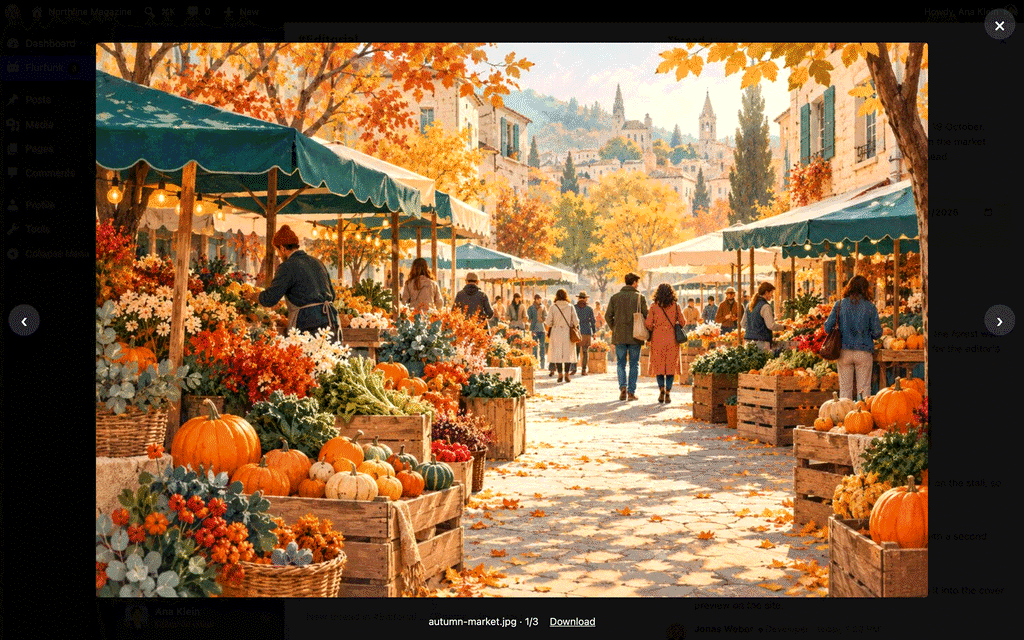
- One image shows as a preview, several as a gallery of thumbnails. Clicking an image opens it in a large view (lightbox): use the arrow keys or the ‹ › buttons to go through the images of the message, Download to save one, and Escape or a click next to the image to close it. Ctrl-click or Cmd-click opens the file in a new tab instead.
- Audio and video files show as players.
- Other files show as a download link with name and size. Long lists show the first six files; the rest fold away under “… more files”.
Files you upload in Flurfunk do not appear in the media library. If a file should be used elsewhere, click Add to media library next to it. The file keeps its place and address, so the message still works. Files nobody refers to any more are deleted after 30 days. A file someone deleted from the media library shows as “no longer available”.
You need the WordPress permission to upload files to see the Attach file and From media library buttons.
Tasks
Any thread can be a task.
- When starting a thread, tick Task.
- In an open thread, click Make it a task.
A task has:
| Part | How |
|---|---|
| State | Open, In progress, Question or Done, chosen from the menu in the thread. Ticking Done closes the task, unticking reopens it. |
| Responsible | Assign (or Change) opens a list of people with a search box. Up to 20 people. |
| Due date | Pick a date; × removes it. |
Each change is noted in the thread, for example “Ada made Ben responsible” or “Ada set the due date to Fri, 24 Oct”.
The states:
| State | Use it when |
|---|---|
| Open | The task is waiting to be started. |
| In progress | Someone is working on it. |
| Question | It cannot go on without an answer. The person who started the task and the responsible people are notified. |
| Done | It is finished. |
My tasks lists your tasks that are not done (open, in progress or question) by due date (tasks without a date last). Tasks due today are marked, overdue ones are red, and the sidebar counts them. Open tasks lists all tasks that are not done.
Notifications about tasks:
- You get a notification when someone makes you responsible.
- On the due date, and every day after while the task is not done and overdue, you are reminded once a day at your chosen hour.
- When someone sets a task you started or are responsible for to Question, you are notified.
- When someone ticks off a task you started or are responsible for, you are notified.
The board
Board in the sidebar shows the tasks you can see in four columns: Open, In progress, Question and Done. Done shows the tasks finished in the last 14 days. Each card shows the title, the channel, the due date, the number of replies and the responsible people.
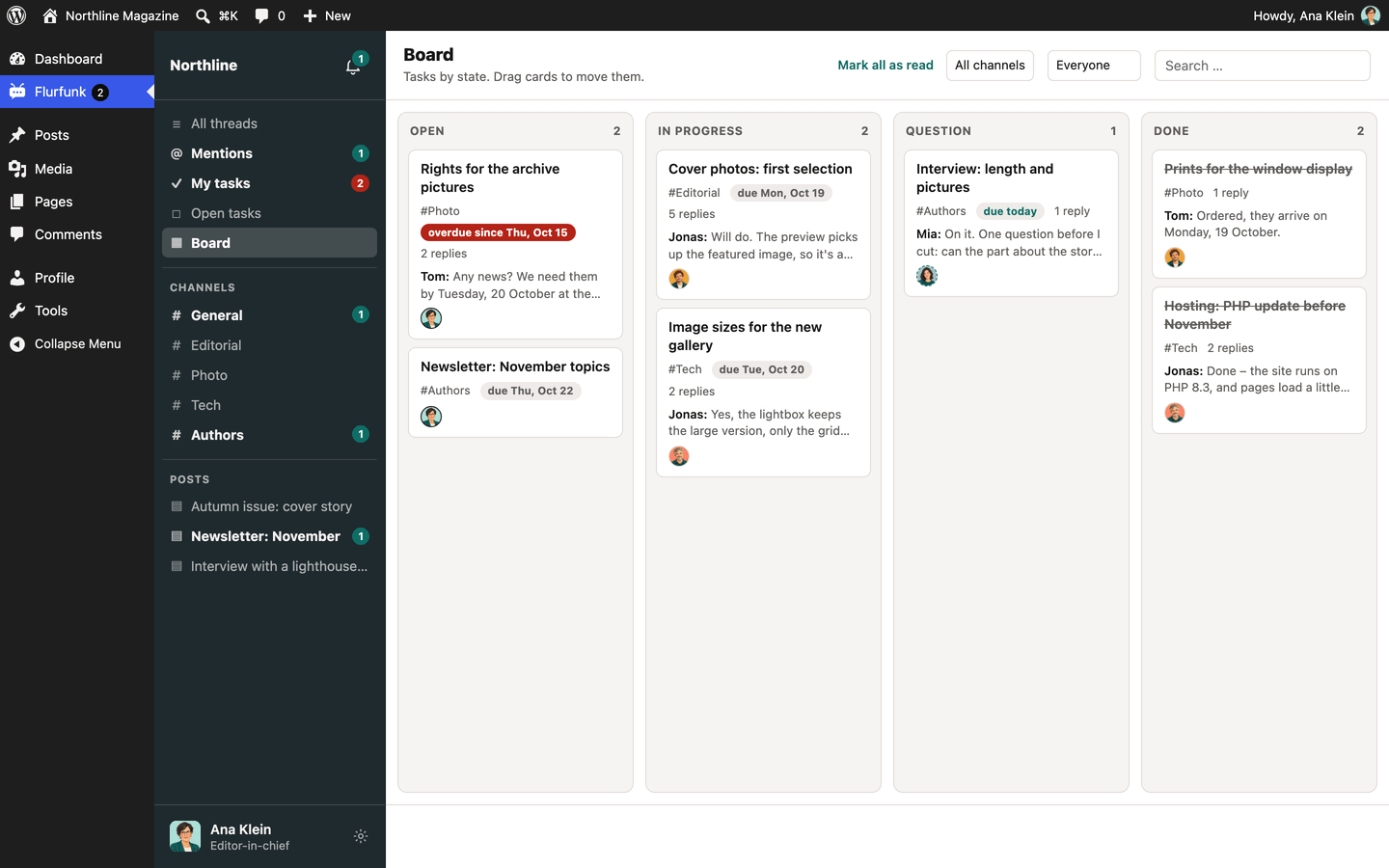
- Drag a card to another column to change its state.
- With the keyboard: focus a card and press Alt+Arrow right or Alt+Arrow left to move it one column on.
- Click a card (or press Enter) to open the thread next to the board.
- The two menus in the header filter by channel and by responsible person (“Me” for your own).
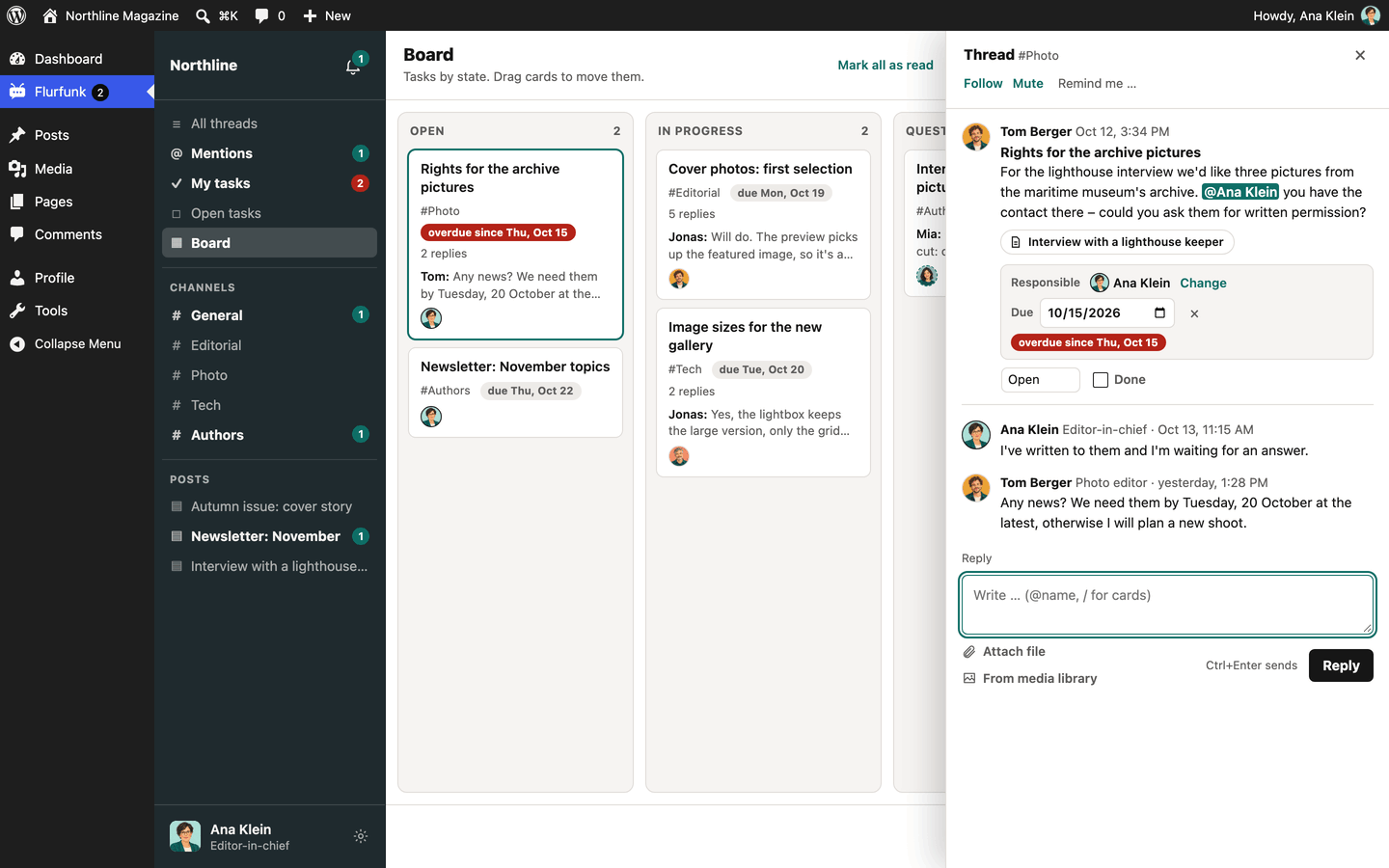
A move shows at once and is saved in the background. If saving fails, the card goes back.
Conversations about posts
A thread attached to a post shows a small link with the post title. Clicking it shows all conversations about that post, from every channel.
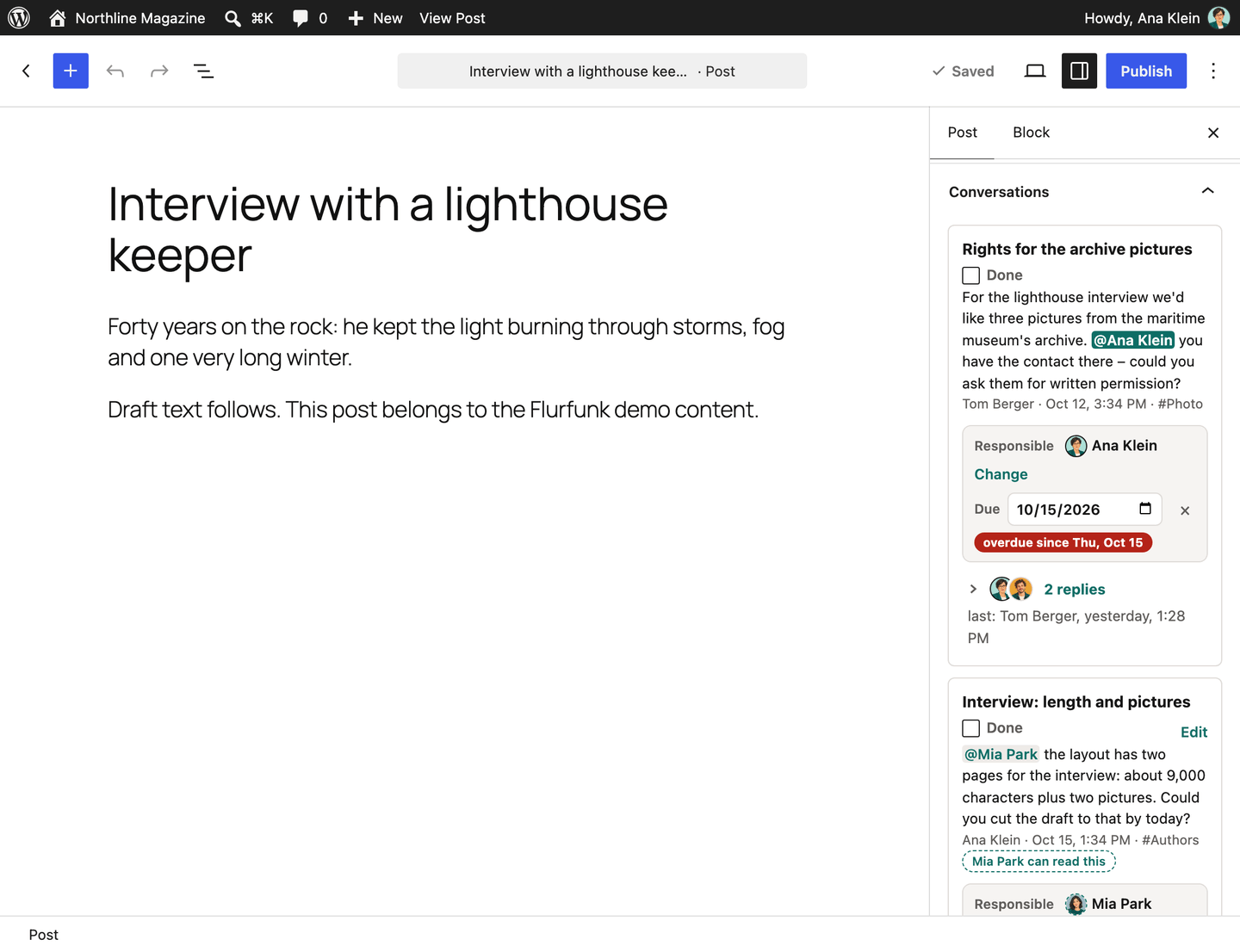
In the block editor, the Conversations panel in the document sidebar lists the threads about the post you are editing. You can reply, tick tasks, set due dates and start a new conversation right there (new conversations there are tasks unless you untick Task).
The posts list has a column with the number of conversations and open tasks per post; click it to open them in Flurfunk.
Team members see a hint like “Guests can read this” or “Jane Doe can read this” on threads that guests can read.
Follow, mute, remind me
The header of an open thread has three controls:
| Control | Effect |
|---|---|
| Follow | You are notified about every reply, even if you never wrote in the thread. |
| Mute | You are only notified when someone mentions you or gives you a task. |
| Remind me … | In an hour, tomorrow or next Monday (at your chosen hour). You get a “Reminder” notification for the thread. Choose No reminder to remove it. |
Click Following or Muted again to go back to normal. A reminder that falls into your quiet hours or a pause waits until they end.
Notifications
What you are notified about
| Kind | When |
|---|---|
| Mention | Someone wrote @you. |
| Task | Someone made you responsible for a task. |
| Due | A task of yours is due today or overdue (once a day). |
| Reminder | The reminder you set on a thread. |
| Reply | A new message in a thread you started, wrote in, are responsible for, or follow. |
| Question | A task you started or are responsible for was set to “Question”. |
| Done | A task you started or are responsible for was ticked off. |
| Channel | A new thread or reply in a channel you set to “every new post”. |
| Message | Anything else you can see, only if you chose “everything” for mail or push. |
You are never notified about your own actions. In a muted thread only mentions and tasks get through.
The bell
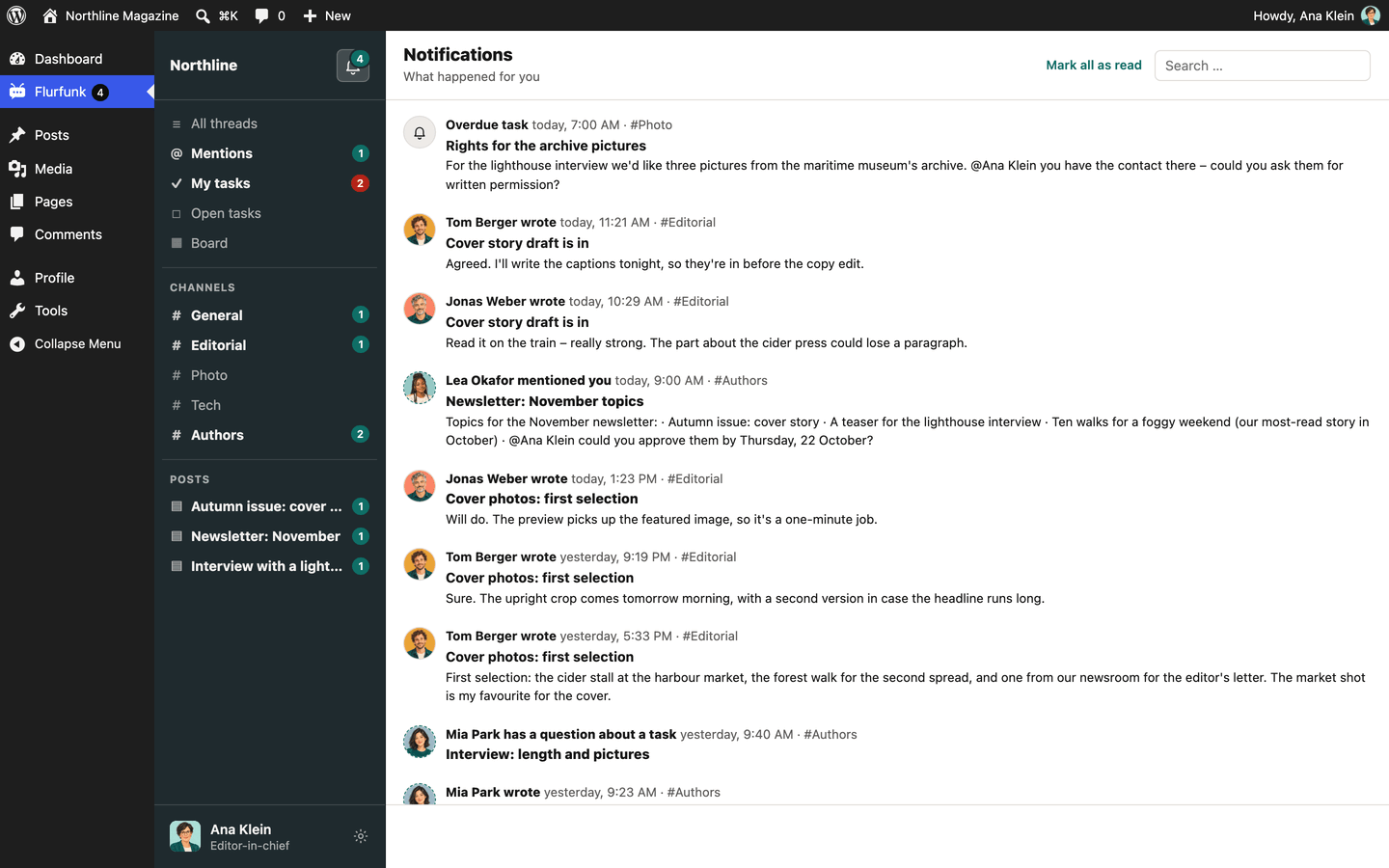
Every notification lands in the list behind the bell at the top of the sidebar, whatever you chose for mail and push. Opening a thread marks its notifications as read. Mark all as read clears the list. Read notifications are removed after 90 days, unread ones after 180.
Per channel
The header of each channel has a “Notify” menu:
| Choice | Effect |
|---|---|
| as usual | Your general mail and push settings apply. |
| every new post | Every new thread and reply in this channel notifies you. |
| only mentions | Only what concerns you personally (mentions, tasks, replies in your threads). |
Your settings
Click your name at the bottom of the sidebar.
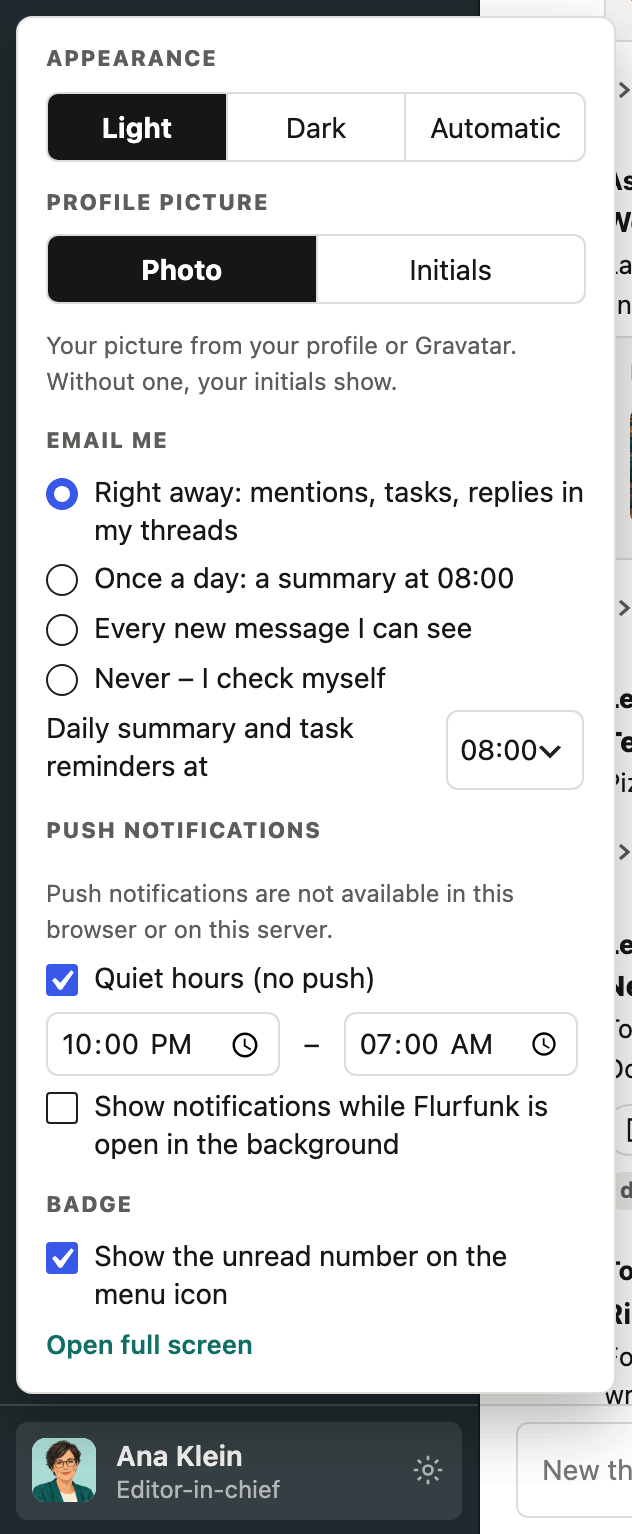
| Setting | Choices |
|---|---|
| Appearance | Light, dark, or automatic (follows your system) |
| Profile picture | Photo (your WordPress profile picture or Gravatar) or initials |
| Email me | Right away: mentions, tasks, replies and the other personal kinds above. Once a day: one summary of your unread notifications. Every new message I can see. Never. |
| Daily summary and task reminders at | The hour (site time zone) for the daily summary and due reminders. Default 7:00. |
| Push notifications | On or off for this device, then what to push: mentions/tasks/replies, everything, or nothing. Send a test checks that it works. |
| Pause | Stops push for 1 hour, 3 hours or until tomorrow. Your name tile shows until when; Resume ends it early. |
| Quiet hours | A time window (site time zone) without push, for example 22:00 to 07:00. |
| Show notifications while Flurfunk is open in the background | System notifications from the open tab, without push. |
| Badge | Show the unread number on the menu item and in the tab title. |
Push on phones and tablets
Push works in current desktop and Android browsers once you turn it on. On iPhone and iPad it only works when Flurfunk is installed as a web app:
- Open Flurfunk in Safari.
- Tap Share → Add to Home Screen.
- Open Flurfunk from the home screen and log in.
- Open your settings and turn push on.
Push is set per device. Turn it on in each browser and on each phone you use.
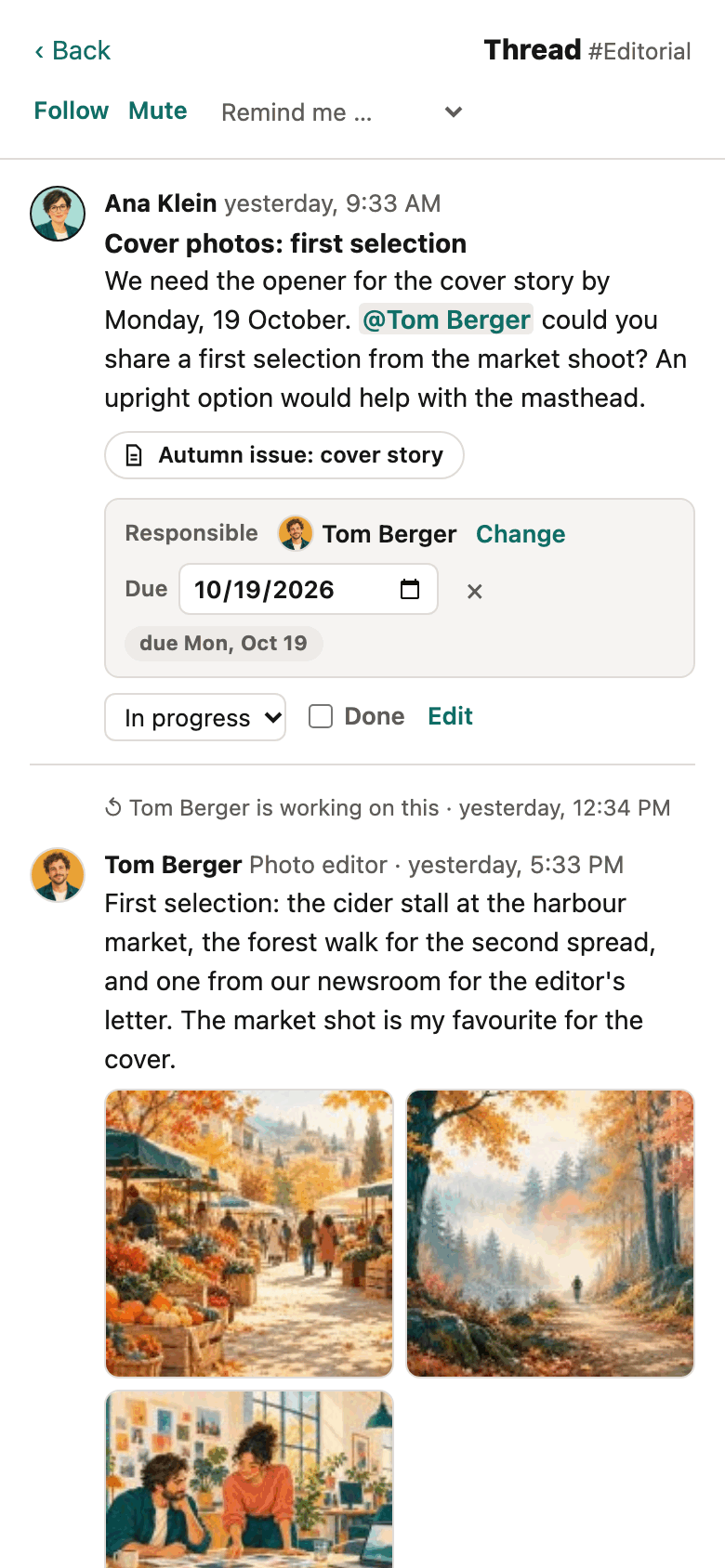
Dark appearance
With Dark (or Automatic while your system is dark) the whole app switches colours; the sidebar keeps your site’s colour.
Keyboard shortcuts
| Keys | Where | Does |
|---|---|---|
| Ctrl+K / Cmd+K | Overview | Jump to the search box |
| Ctrl+Enter / Cmd+Enter | Message and reply boxes | Send, or save an edit |
| Escape | Mention or command menu | Close the menu |
| Escape | Editing a message | Cancel the edit |
| Escape | Your settings | Close them |
| Escape | Open thread (focus outside the text boxes) | Close the thread |
| Escape | Lightbox | Close it |
| Arrow left / right | Lightbox | Previous or next image |
| Arrow down / up | Text box with an open menu, pickers | Move through the suggestions |
| Enter | Search box of the “Attached to” picker | Choose the first result |
| Enter or Space | Focused thread in the list or card on the board | Open it |
| Alt+Arrow left / right | Focused card on the board | Move it to the previous or next column |
| Arrow left / right | Focused column edge | Make the column narrower or wider |
For guests
If you are a guest (for example a guest author), you see the channels the site opened to guests. In most setups that means the threads about your own posts. You can:
- start conversations about your own posts
- reply, mention people, attach files (if you may upload), tick tasks
- see the posts with conversations under My posts in the sidebar
Internal team threads stay invisible to you unless a channel is open to guests.